Measure Development Outcomes: Waste, Development Speed & Risk
Delivery shows how efficiently development work becomes finished code. It complements DORA (deploy/release) by focusing on the coding side of flow.
Use CodeScene’s Delivery analysis to track team/domain KPIs, spot bottlenecks, and tie delivery outcomes back to technical drivers (Code Health is the leading indicator; Delivery the lagging result).
Use the Delivery analysis to:
Track lead times and unplanned work/waste as outcome KPIs.
See pending work/WIP risk early before it hits production.
Spot bottlenecks in both coding and post-coding stages (reviews, QA, deployments).
Guide retrospectives and coaching: inspect trends and connect outcomes to technical and process drivers.
Connect Code Health to outcomes: are we getting faster and better?
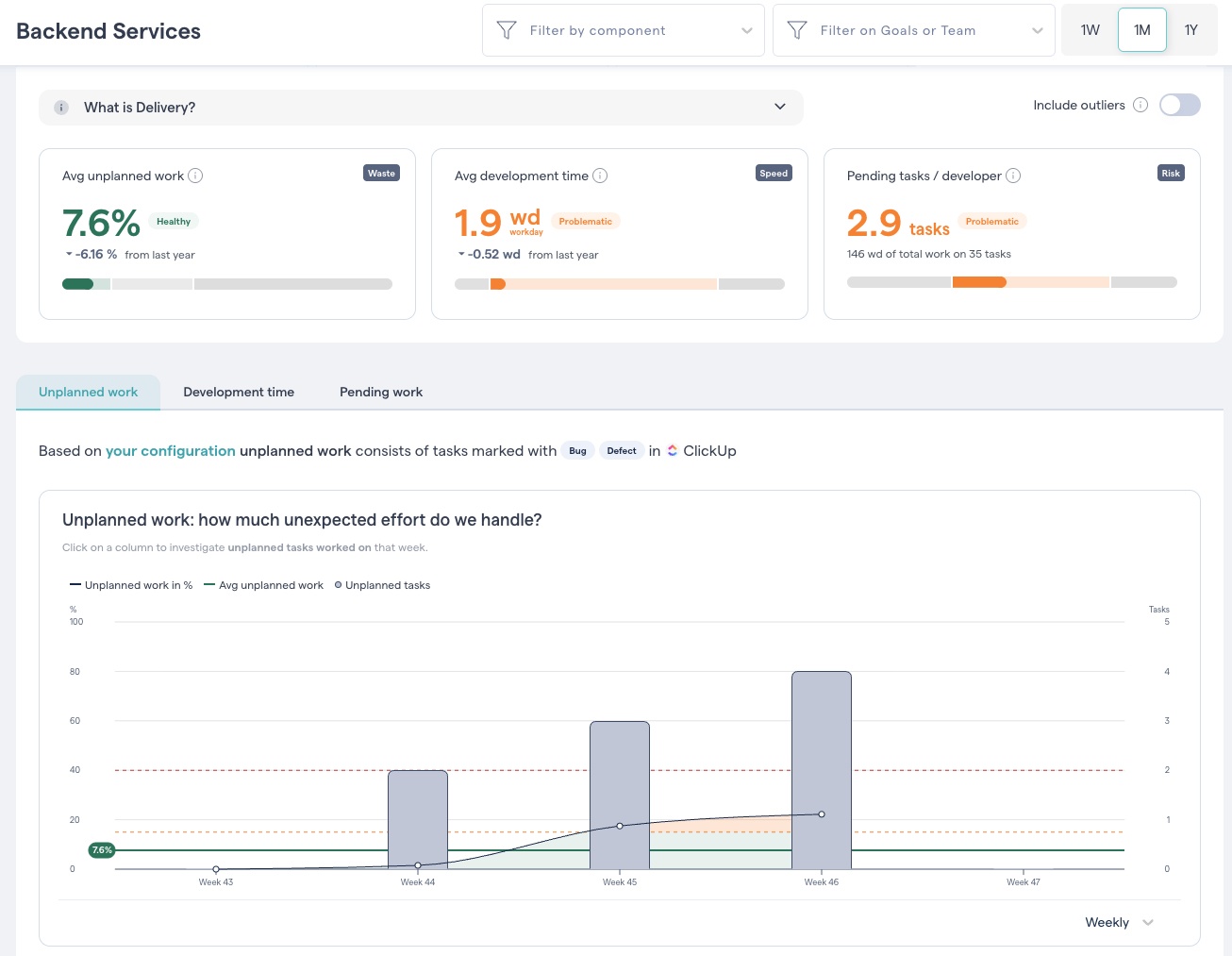
Fig. 179 CodeScene’s Delivery view presents outcome-oriented KPIs and actionable trends.
Pre-requisites for CodeScene’s Delivery Analysis
Codescene automatically calculates development time for each task down to the file level. No manual tracking of time spent or estimates/guesses needed.
To enable the Delivery analysis, you need:
Trace tasks to commits. Use one of: * Smart commits with the task ID in the commit message, * Task ID encoded in the branch name, or * Task ID referenced in the PR/MR.
Enable PM integration to fetch task data (e.g., Jira, ClickUp). See configuration.
Delivery KPIs
The Delivery analysis presents three high-level KPIs and views: Unplanned Work (waste), Development Time (speed), and Pending Work per Developer (risk).
CodeScene’s Unplanned Work measures how much unexpected effort you handle
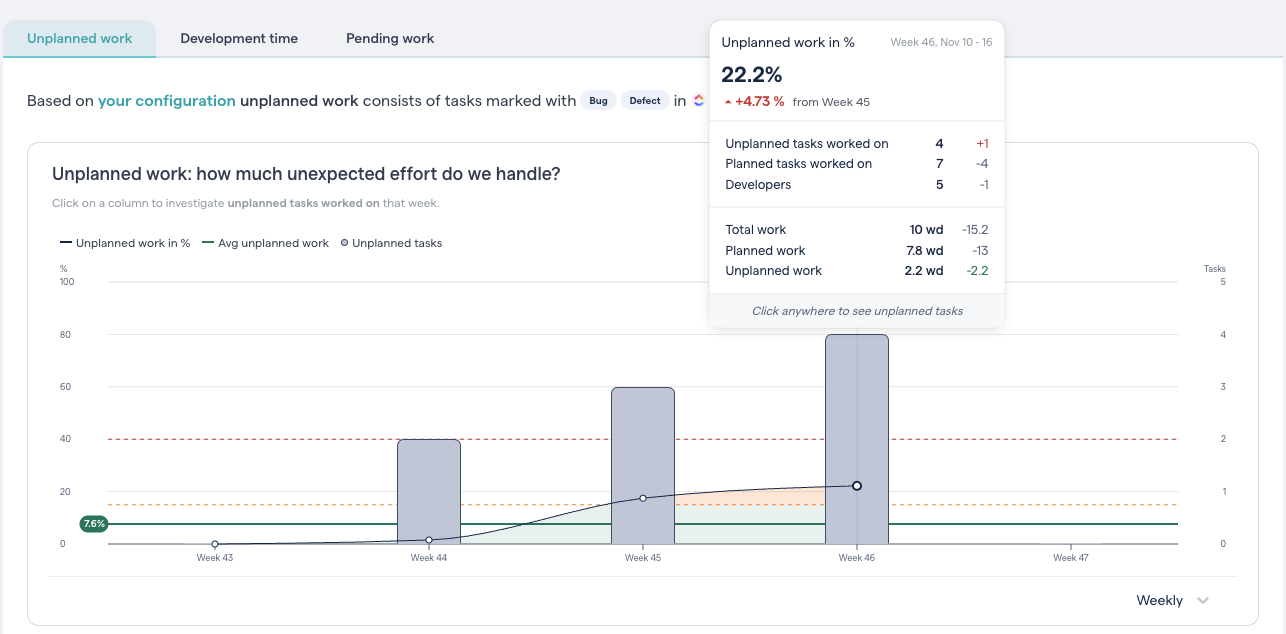
Fig. 180 CodeScene’s Unplanned Work measures how much unexpected effort you handle
Unplanned work represents tasks the team didn’t anticipate up front (e.g., production bugs, rework). You configure which task/issue types count as unplanned.
Measure: time_spent_on_unplanned_tasks / total_time_spent_on_all_tasks.
Unplanned work steals capacity and makes delivery unpredictable. Minimizing unplanned work is key to sustainable flow.
💡 The amount of Unplanned work indicates the unrealized potential that can be optimized in an organization. Less unplanned work reduces stress and increases predictability and throughput.
CodeScene’s Development Time measures how fast you implement tasks
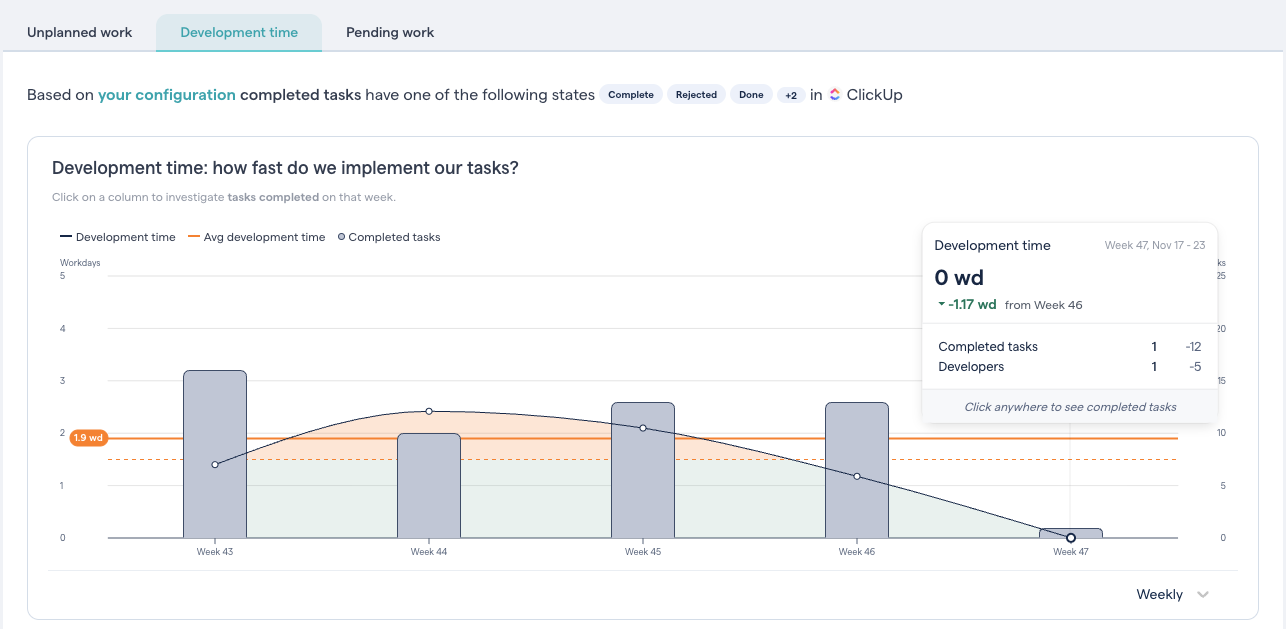
Fig. 181 CodeScene’s Development Time measures how fast you implement the average task.
High-performing teams in healthy codebases ship small, frequent changes. Short development times improve time-to-market.
Measure: average lead time per task from In-Progress → last commit referencing the task.
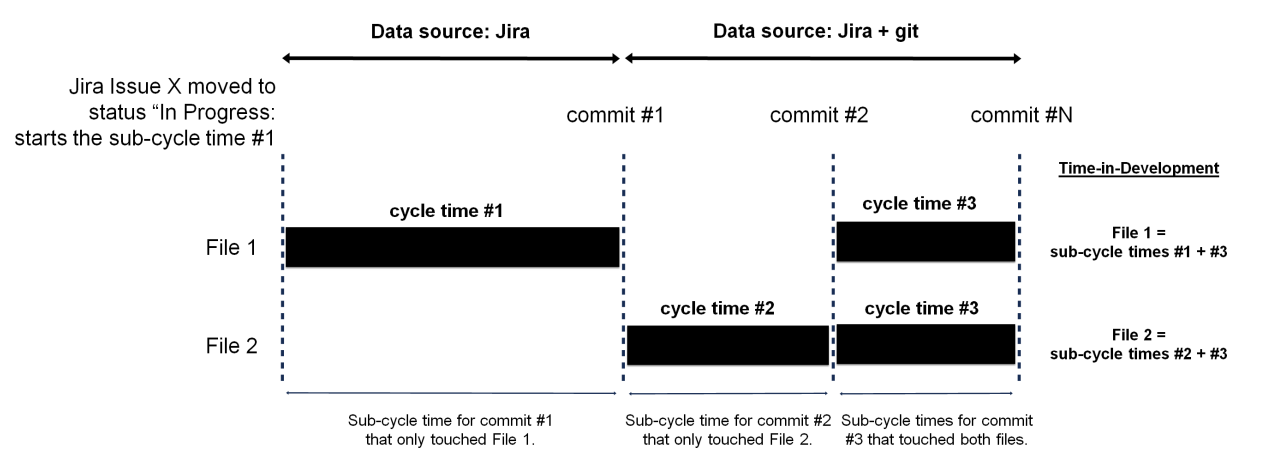
Fig. 182 CodeScene automatically calculates the development time for each task down to the file level.
💡 Some tasks naturally take longer. Use the table below the charts to identify outliers and work needing attention.
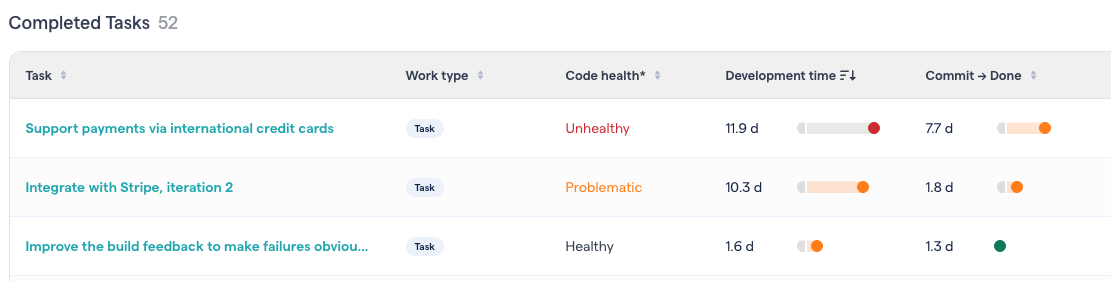
Fig. 183 CodeScene highlights long-running tasks and highlights bottlenecks in both development and post-coding stages.
CodeScene’s Pending work measures the amount of work-in-progress
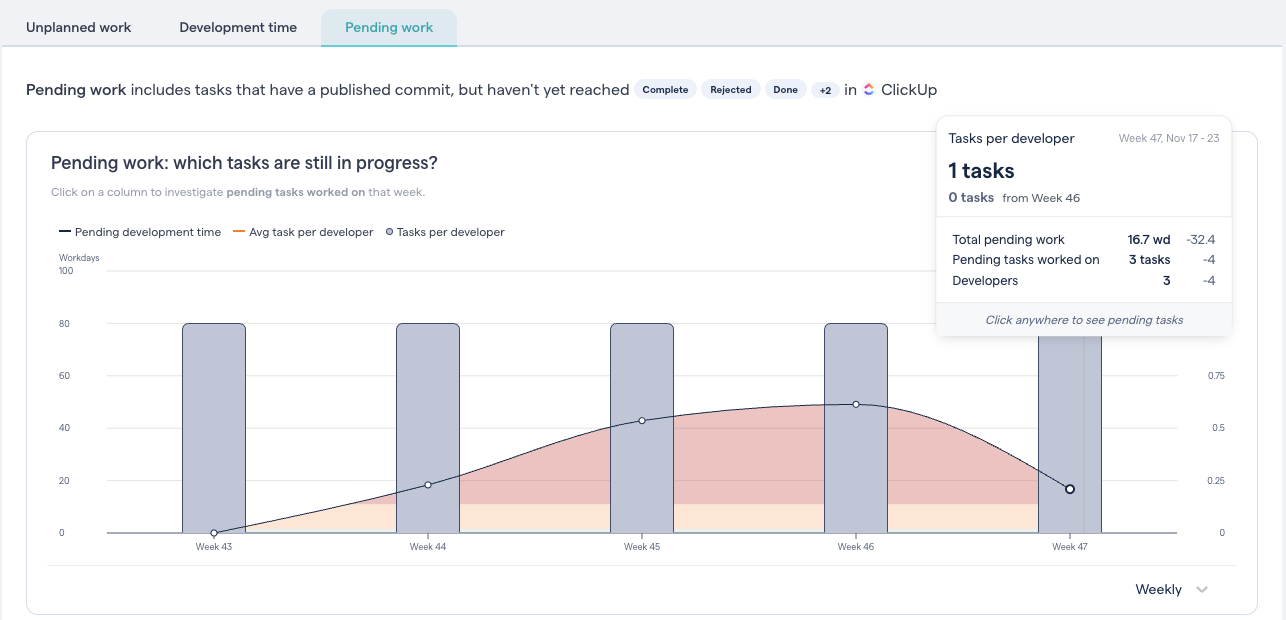
Fig. 184 CodeScene measures the amount of pending work in progress
Efficient delivery limits parallel work and ships small batches. Large tasks lengthen feedback loops and increase failure cost.
Measure: number of tasks per developer where coding has started but the task isn’t completed.
⚠ Limitation: In this version, pending work is identified on the main analysis branch only; work that exists only on feature branches isn’t detected. Future versions will include development branches.
💡 Reducing parallel work improves predictability and pace.
FAQ: Frequently Asked Questions on the Delivery Analysis
Can I break down my KPIs to the team-level or to specific domains/components/services?
Yes. Use filters to view delivery metrics by team and/or by domain. Define teams and architectural components in your project configuration to enable these filters.

Fig. 185 CodeScene let’s you filter the delivery metrics by team and/or by domain.
How can CodeScene’s calculate our Development Time for a task?
CodeScene pulls of this magic by combining data from your PM tool (e.g. Jira) with commit data from Git. For this to work, there has to be _some_ way for CodeScene to map tasks to commits.
💡 Typically, you’d use smart commits where the task ID is encoded in the commit message: git commit -m “MY-PROJ-756: adjust the font size in the customer legend”.
The metric measures cycle time from when a task moves In-Progress until the last commit that references that task.
Fig. 186 CodeScene automatically calculates the development time for each task down to the file level.
Can I define what unplanned work is in our context?
Yes. You have full control. By default, CodeScene treats “Bug/Defect” as unplanned. Change these rules in the configuration.
What does it mean that Code Health is the leading indicator and Delivery the lagging result?
In our study on how The Business Impact of Code Health , we found that you develop features up to 10x faster in healthy code, and achive 15x fewer defects than unhealthy code.
Further, our model for translating Code Health improvements into speed and defect reduction lets you make a business case for code quality and technical debt remediations.
👉 TL;DR: Improvements in Code Health lead to business outcomes—faster, better. Code Health predicts; Delivery demonstrates.
Example: you refactor a low-health hotspot. Subsequent changes in that area become smaller and safer. Over several tasks, Delivery trends typically show shorter Development Time and less Unplanned Work—the measurable outcomes—plus the human ones: fewer fire drills, fewer production incidents, and less stress.
Configuration
The Project Management integration is configured per project.
During the initial setup, you connect CodeScene to a project management provider by supplying the required credentials. Once a provider has been configured, all settings are managed from the PM Integration Configuration page.
After the initial setup, you will always land directly on the configuration page. The provider selection step is not shown again unless the integration is reset.
Provider Setup
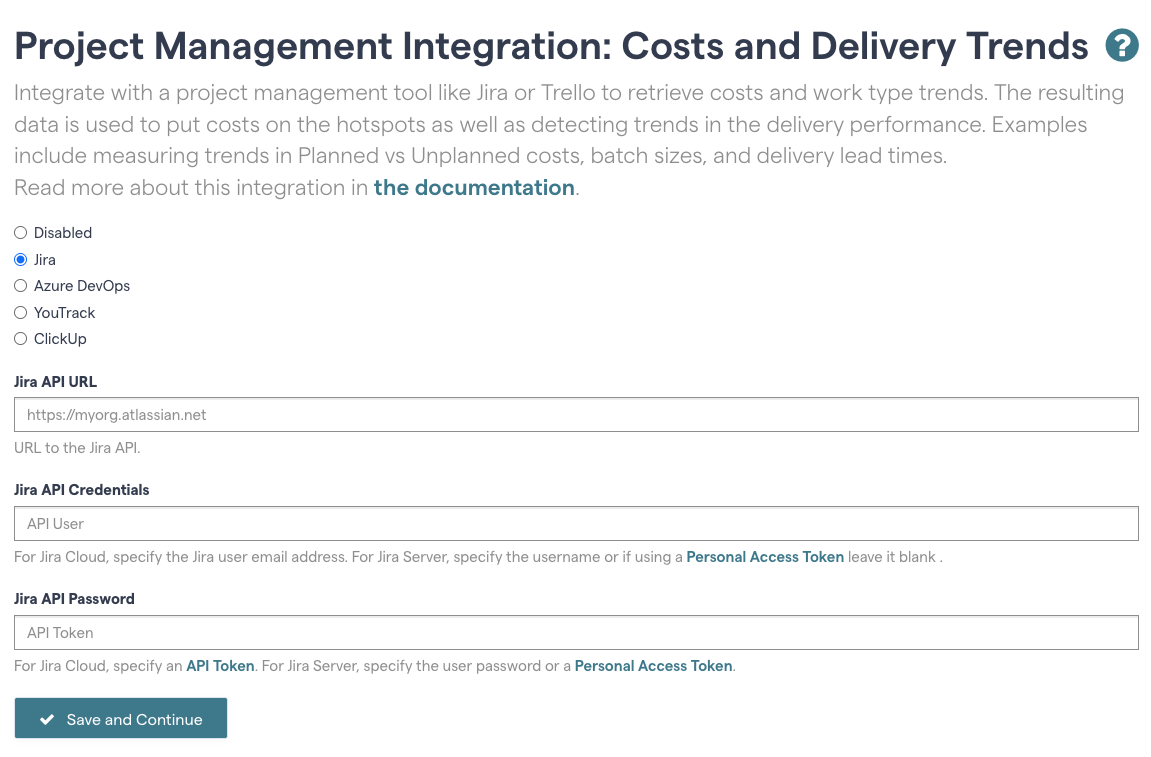
Fig. 187 Start by selecting “Jira”
Jira
Jira is enabled and configured per project. Navigate to the “PM Integration” tab in your project’s configuration and select “Jira”:
Fill in your Jira credentials here. We recommend using a Jira API token as the password.
After the provider has been configured, the configuration page is shown.
Azure DevOps
You need an access token from Azure Devops. See Authenticate access with personal access tokens . Assign the Code:Read (to read pull requests data) and Work Items:Read scopes.
GitLab Issues
You need an access token from GitLab with read_api permissions. See Create a personal access token .
YouTrack
You need an permanent token from YouTrack. See Creating a permanent token .
ClickUp
You need an API token from ClickUp. See Generate or regenerate a Personal API Token .
Note the following regarding the ClickUp integration:
ClickUp spaces are used as “external projects” that you add in the config
The ClickUp task type will be used as “work type” for tasks
PM Integration Configuration
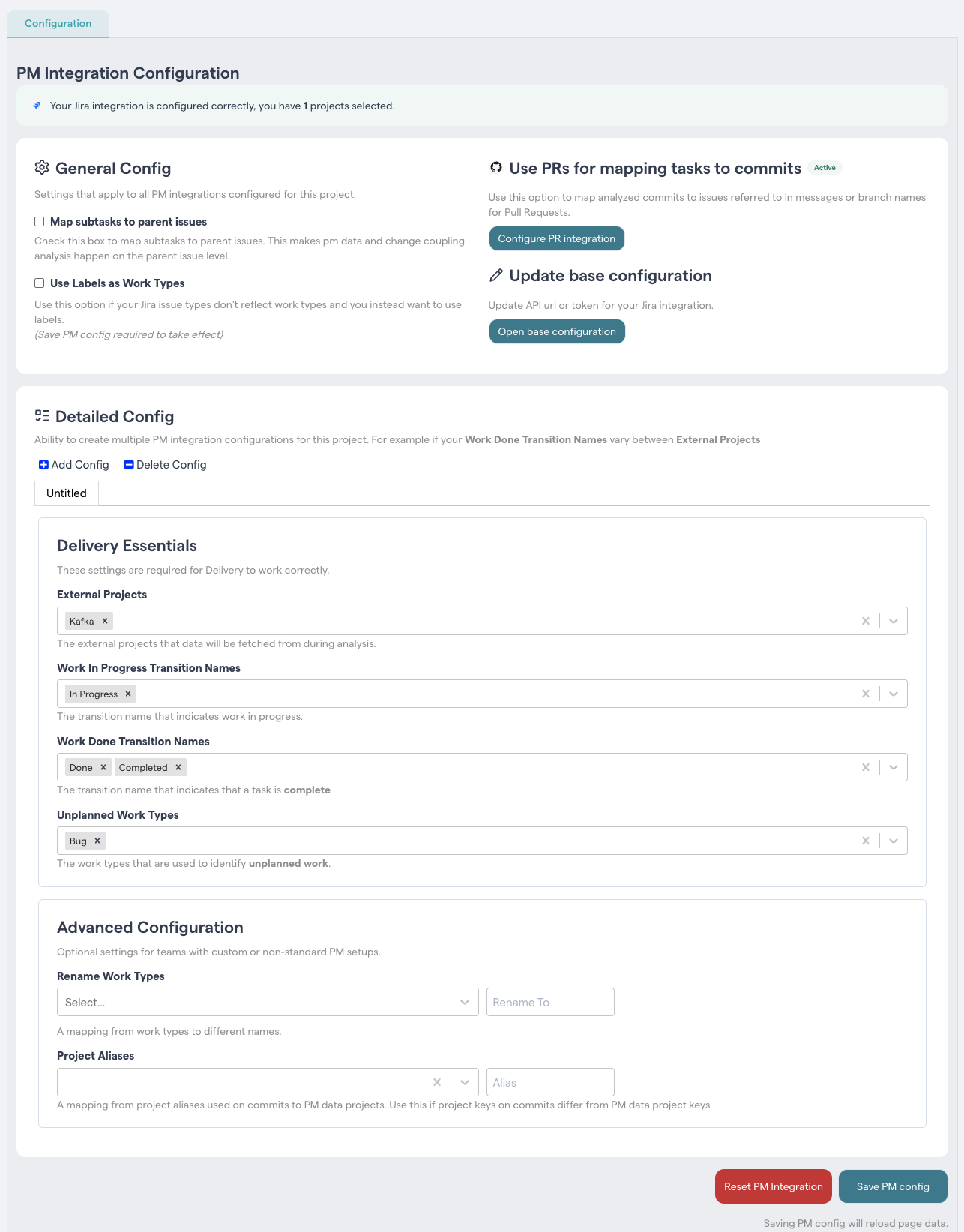
Fig. 188 Configure the information you want to retrieve from Jira.
The configuration page is divided into two main sections:
General Config - settings that apply to the Project Management integration as a whole for this project
Detailed Config - one or more configurations that define how PM data is interpreted
General Config
General configuration settings apply to the PM integration as a whole for this project, regardless of how many detailed configurations you have.
💡 Note that not all providers support all options.
Map subtasks to parent issues
When enabled, PM data from subtasks is mapped to their parent issues.
This ensures that delivery metrics and change coupling analysis are performed at the parent issue level.
Use labels as work types
Enable this option if your PM system’s issue types do not represent meaningful work categories and you instead want to derive work types from labels.
💡 Note that the PM configuration must be saved before this change takes effect, after which you can select which labels to include as work types in the Detailed Config section.
Use PRs for mapping tasks to commits
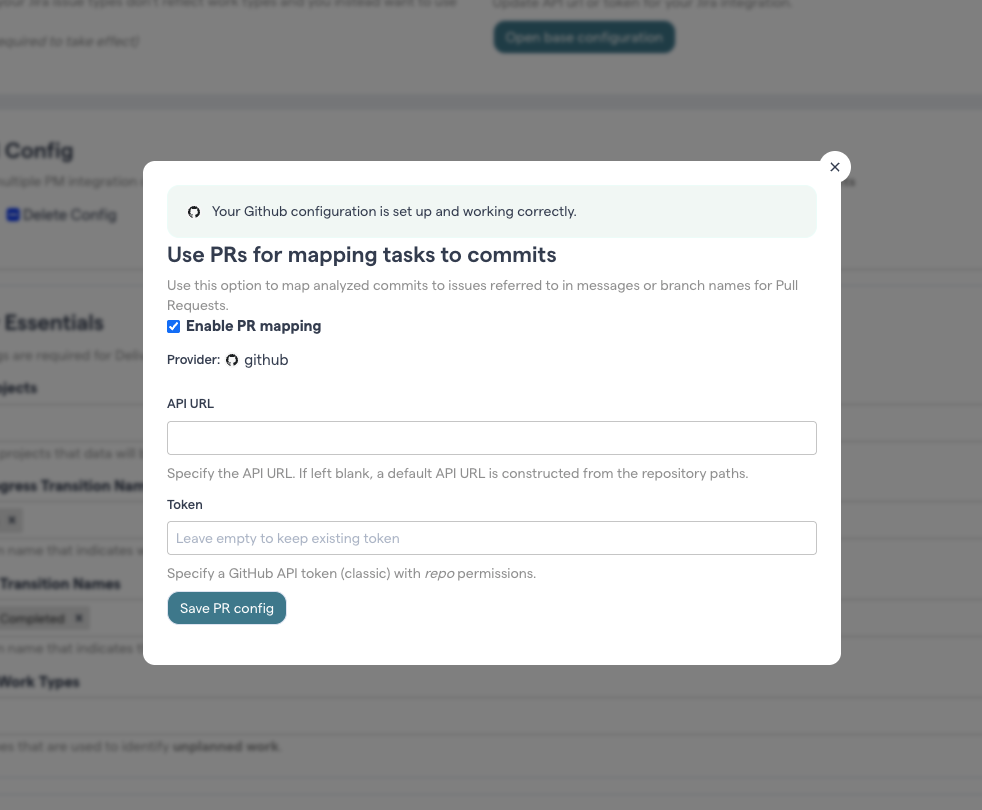
Fig. 189 Configure you PR integration settings.
Enable this option to map commits to work items using references found in Pull Requests rather than commit messages or branch names.
When enabled, you can configure the Pull Request integration, including API access and authentication details, from the PR configuration dialog.
Update base configuration
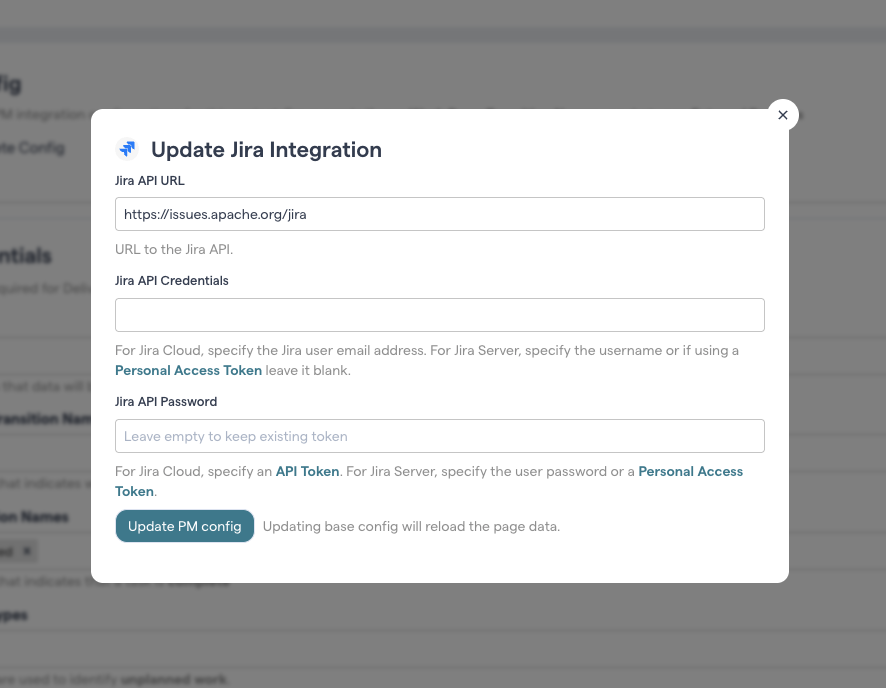
Fig. 190 Update your current PM provider, such as updating expired token.
Use this option to update the PM provider connection details, such as:
API URL
User credentials
Access tokens
Updating the base configuration will reload the PM data used in the analysis.
Detailed Config
Detailed configuration defines how PM data is interpreted and used in delivery analysis.
You have the option to create multiple detailed configurations for a single project. This is useful if different external projects use different workflows or transition names.
Each configuration can be added or removed independently.
Delivery Essentials
These settings are required for delivery analysis to work correctly.
External Projects: Select one or more projects in your project management tool that CodeScene will use as data sources.
Work In Progress Transition Name: Specify the names of the issue statuses that indicate that the development work has started. Often, this is the “In Progress” or “In Development” state.
Work Done Transition Names: The transition name that indicates that a task is complete. Often, this is the “Done” or “Closed” state.
Supported Work Types When using Use labels as work types to identify work types, you need to select the labels that are to be included in the analysis. This field becomes visible only when that option is enabled in the General Config section after saving.
Unplanned Work Types: The work types that are used to identify unplanned work.
Resetting the PM Integration
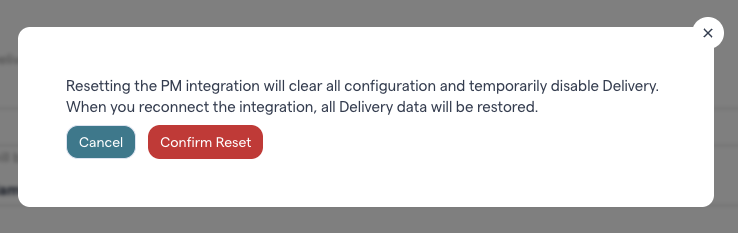
Fig. 191 Use this option to reset the PM integration, and start over.
Resetting the PM integration will:
Clear all PM configuration
Temporarily disable delivery analysis
When a integration is reconnected, delivery data will be re-processed using historical data.
Use this option if you need to switch PM providers or start fresh with a new configuration.