Configure Project Management integration for Delivery
Configuration
Connect your project management tool under the PM Integration tab in the project configuration. Delivery uses this data for lead times and related analyses.
Connect CodeScene to Jira
Jira is enabled and configured per project. Navigate to the “PM Integration” tab in your project’s configuration and select “Jira”:
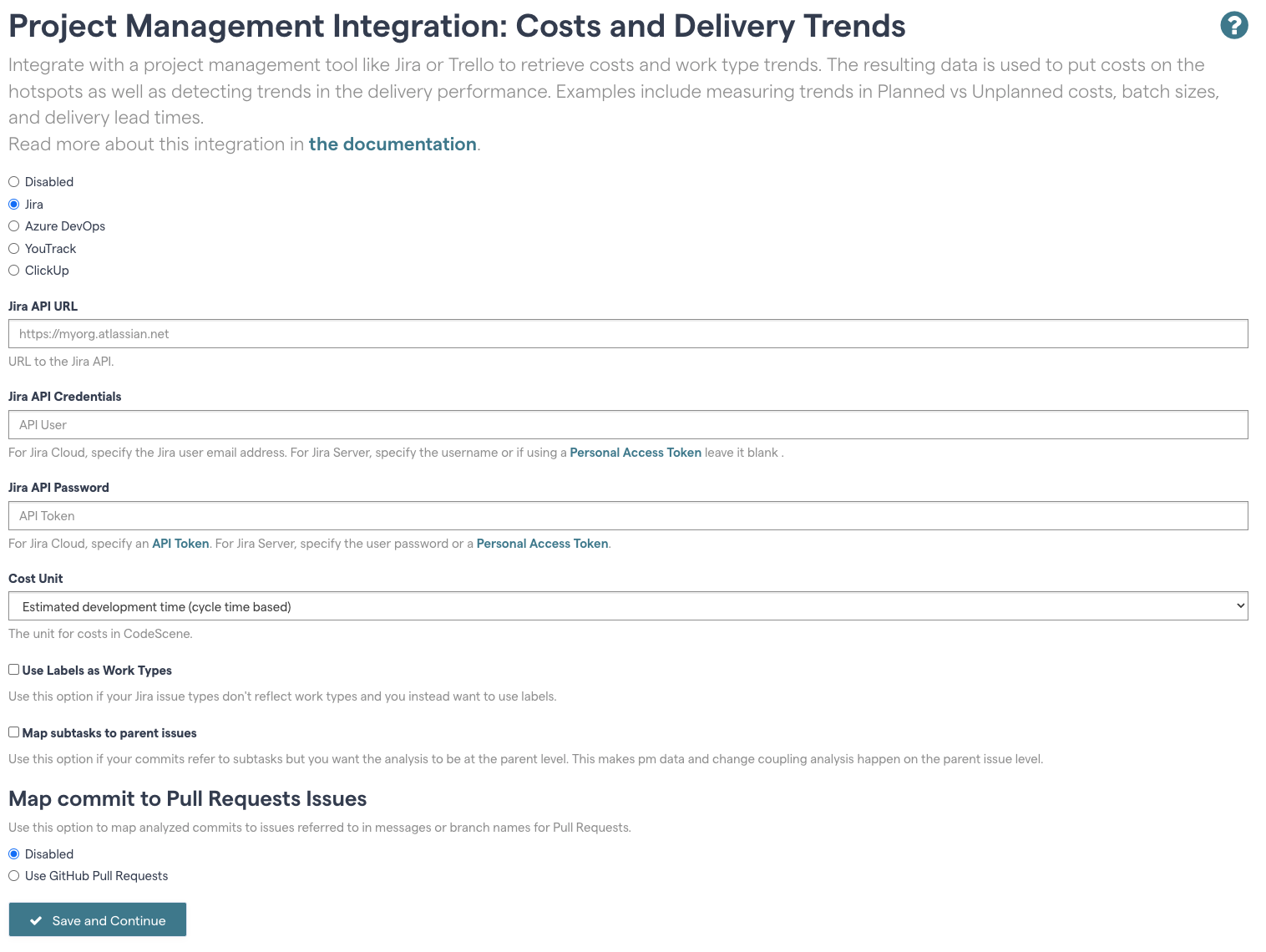
Fig. 38 Start by selecting “Jira”
Fill in your Jira credentials here. We recommend using a Jira API token as the password. Note also that a separate token for accessing GitHub is necessary when selecting the option to extract issue numbers from GitHub Pull Requests.
Once you press “Save and Continue”, you are presented with the detailed configuration options. See further below in this document for a detailed walkthrough of the configuration options.
Connect CodeScene to Azure DevOps
Azure DevOps is enabled and configured per project. Navigate to the “PM Integration” tab in your project’s configuration and select “Azure DevOps”:
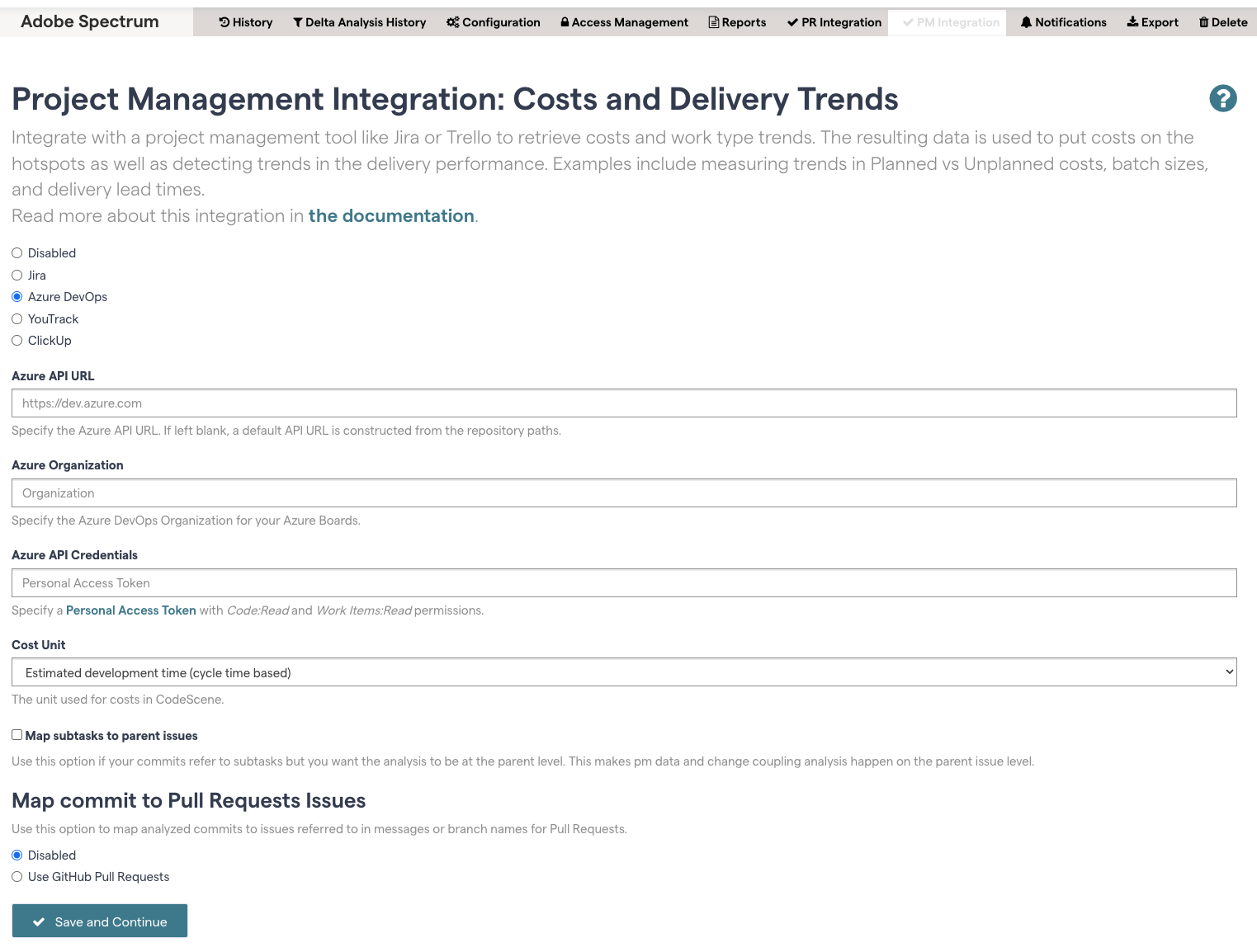
Fig. 39 Configure the information you want to retrieve from Azure DevOps.
You need an access token from Azure Devops. See Authenticate access with personal access tokens . Assign the Code:Read (to read pull requests data) and Work Items:Read scopes.
Once you press “Save and Continue”, you are presented with the detailed configuration options, as specified in the next section.
Connect CodeScene to GitLab Issues
GitLab Issues are enabled and configured per project. Navigate to the “PM Integration” tab in your project’s configuration and select “GitLab Issues”.
You need an access token from GitLab with read_api permissions. See Create a personal access token .
Once you press “Save and Continue”, you are presented with the detailed configuration options, as specified in the next section.
Connect CodeScene to YouTrack
YouTrack is enabled and configured per project. Navigate to the “PM Integration” tab in your project’s configuration and select “YouTrack”.
You need an permanent token from YouTrack. See Creating a permanent token .
Once you press “Save and Continue”, you are presented with the detailed configuration options, as specified in the next section.
Connect CodeScene to ClickUp
Clickup is enabled and configured per project. Navigate to the “PM Integration” tab in your project’s configuration and select “ClickUp”.
You need an API token from ClickUp. See Generate or regenerate a Personal API Token .
Once you press “Save and Continue”, you are presented with the detailed configuration options, as specified in the next section.
Note the following regarding the ClickUp integration:
ClickUp spaces are used as “external projects” that you add in the config
The ClickUp task type will be used as “work type” for tasks
The “Map to parent” option will map referred subtasks to their immediate parent only (if any)
Specify the Detailed Configuration Options
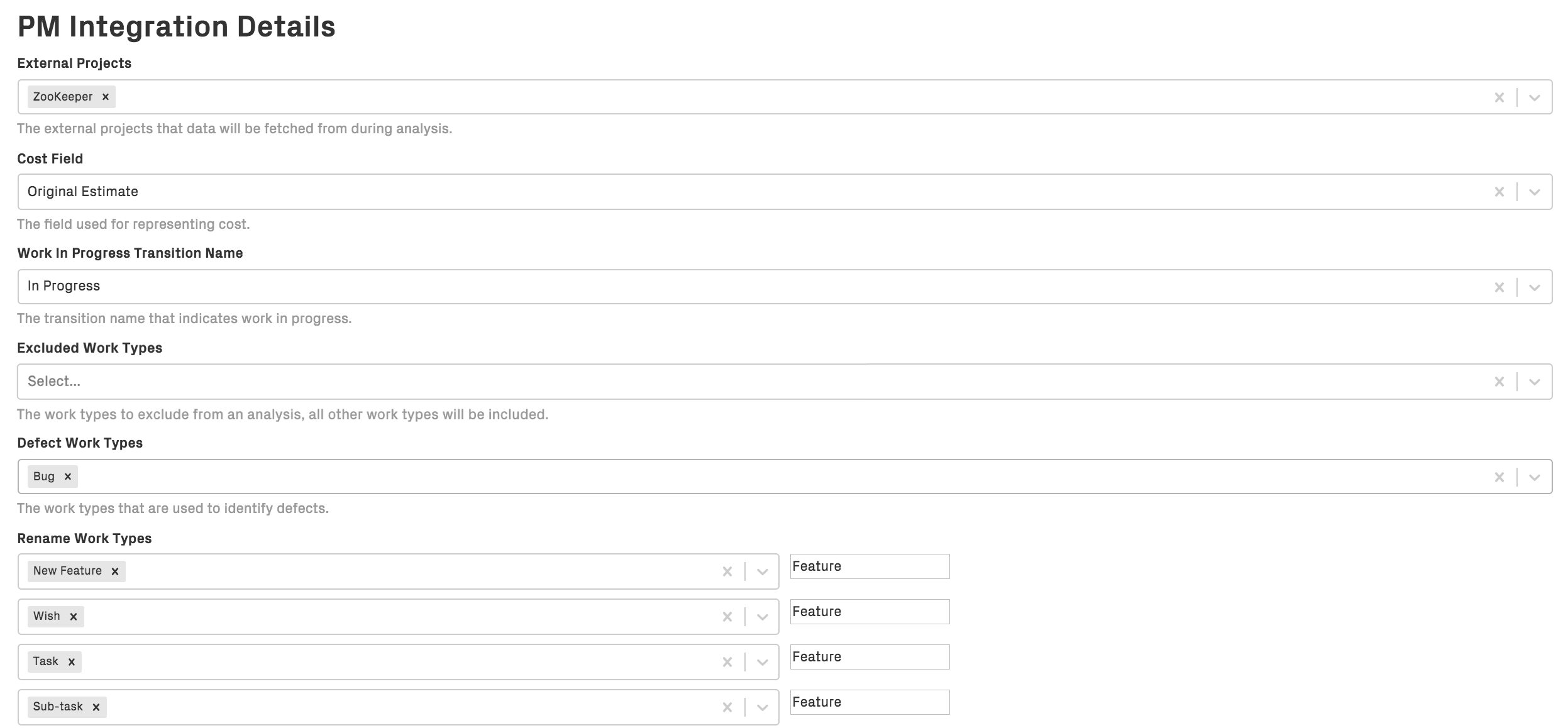
Fig. 40 Configure the information you want to retrieve from Jira.
External Projects: Select one or more projects in your project management tool that CodeScene will use as data sources.
Work In Progress Transition Name: Specify the names of the issue statuses that indicate that the development work has started. Often, this is the “In Progress” or “In Development” state.
Supported Work Types When using issue labels to identify work types, you need to select the labels that are to be included in the analysis.
Defect Work Types: Specify the Work Types that will be regarded as defects. This configuration is used to calculate defect densities and work type trends.
The Rename Work Types field allows the work types to be mapped to different analytical categories that you can define yourself. How you do this depends on the type of analysis you wish to perform.
Tip: Rename Work Types to distinguish Planned and Unplanned work
When looking at cost trends, the most interesting distinction is typically between Planned- versus Unplanned Work.
By specifying Rename Work Types option, the Jira labels are translated to the specified label before being sent to CodeScene. For example, if your Jira project contains Feature and Documentation labels, like in the illustration above, these can be categorized together as Planned Work, while Bug and Defect are treated as Unplanned Work; the Refactoring label – which doesn’t have a translation – will be sent as is. Mapping labels this way can allow you to see more meaningful trends. You are free to map labels however you like depending on your analytical needs.
Advanced Information
Measures to reduce bias in the trends
Let’s face it: Project Management data can be noisy. CodeScene reduces as much of this noise as possible via its data cleaning:
Cycle time in development: improve the precision by identifying issues that have a transition to “In progress” _after_ the last commit related to that issue. CodeScene then fall back on using the date of the first commit as starting point to recover part of the cycle time.
CodeScene’s Cost Distribution
CodeScene’s cost model contains a number of features that reduce bias in the available cost data. For example, let’s say that you have an issue with the known cost of 100 hours. In that issue, the developer spent 95% of the time working on one complex hotspot, and then just made a simple tweak to a config file. How should those 100 hours be split between the impacted files? Assigning “100 hours” as cost to each file is clearly the wrong thing to do as it exaggerates the development cost of that simple config file.
For this purpose, CodeScene distributes the calculated costs for a specific issue on two orthogonal levels: 1) across impacted modules, and 2) across the relevant types of work.
Distribution across modules: CodeScene distributes the derived costs proportional to the change impact when multiple modules are modified as part of the same issue. That is, the modules with most work in a specific issue get proportionally higher costs than modules that had less work. CodeScene automatically deduces this distribution.
Distribution across issue types: Since an issue can have multiple issue types and labels, CodeScene distributes the costs equally across all referenced types of work for the specific issue. This is relevant to the cost trends in CodeScene. For example, let’s say we have a cost of 100 hours for a specific issue and entity. The issue has two labels: Feature and UI. CodeScene will distribute the costs so that each of those types of work, Feature and UI, get 50 hours as their costs.
NOTE: The cost unit issues is a special case since issues are never split; it doesn’t make sense to say that the cost of a specific module is “3.25 issues”. Instead CodeScene selects the first known issue type for that issue and assigns it the cost.